DeliverThat driver mobile app automation
Route your mobile device through our automation proxy so you can grab catering orders automatically.
Sign in to your Bot Grabber account to start your DeliverThat Bot
Checking your account…
Install the security certificate on your mobile device
This lets Bot Grabber read the auth token your DeliverThat app already uses. The certificate is only active during this one-time setup.
Filename: BotGrabber-MITM-CA.crt

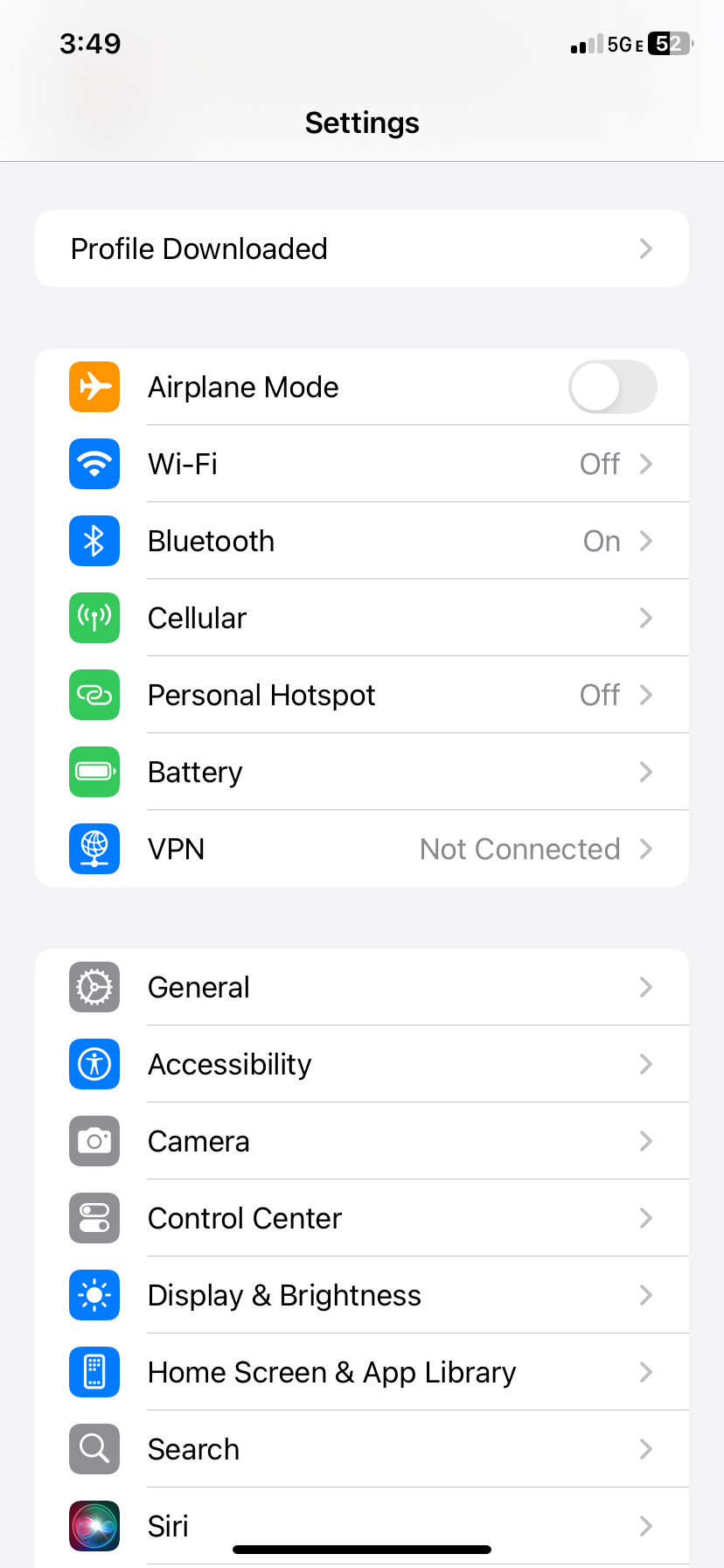
.crt
file then tap InstallEnable full trust for the certificate
iOS requires one extra step to fully trust CA certificates.
Android automatically trusts CA certificates installed through Encryption & credentials → Install a certificate → CA Certificate. If you did that in the previous step, you're already done — tap Next.
Sign in to your Bot Grabber account before setting the proxy.
No account? Create one free — takes 30 seconds, then come back here.
Set your Wi-Fi proxy
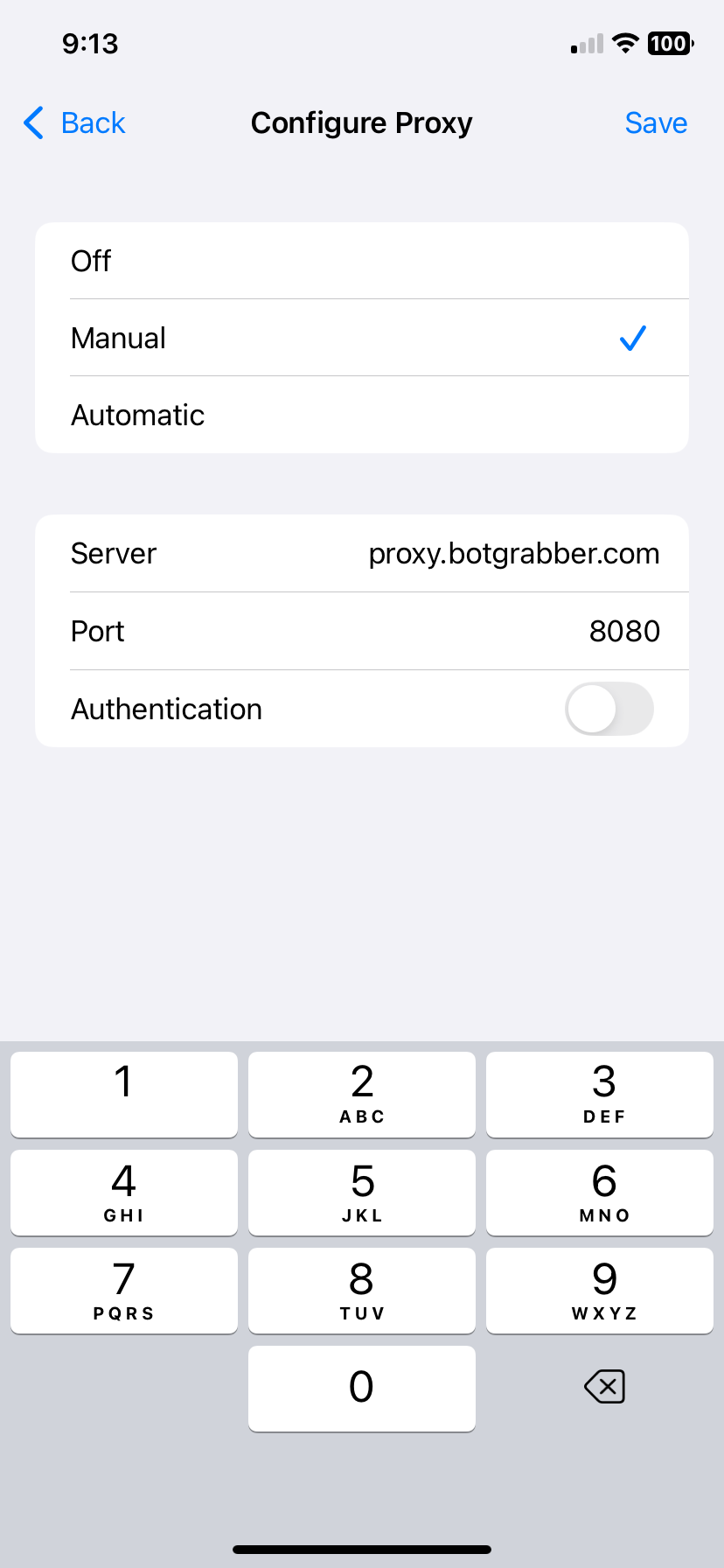
Point your device's Wi-Fi proxy to these values. This routes DeliverThat traffic through our proxy server. Use your Bot Grabber email as the proxy Username and your Bot Grabber password as the proxy Password.


Open your DeliverThat driver app and login now to complete your bot setup.
Sign in now to your DeliverThat driver app. Bot Grabber will detect it automatically.