🦾 Bot 🤖 Grabber🦿
DeliverThat Bot

DeliverThat driver mobile app automation

Route your mobile device through our automation proxy so you can grab catering orders automatically.

🔐 Install Cert → 📶 Set Proxy → 📱 Open DeliverThat → ✅ Run Bot

Login/Register

1 · Certificate
2 · Trust
3 · Proxy
4 · Connect

Checking your account…

On your mobile device, tap Download Certificate below to begin installation.

⬇ Download Certificate

Filename: BotGrabber-CA.crt

Instructions
Step 1
Open the Settings app on your iOS mobile device and then...
iPhone Home Screen showing the Settings app icon
Step 2
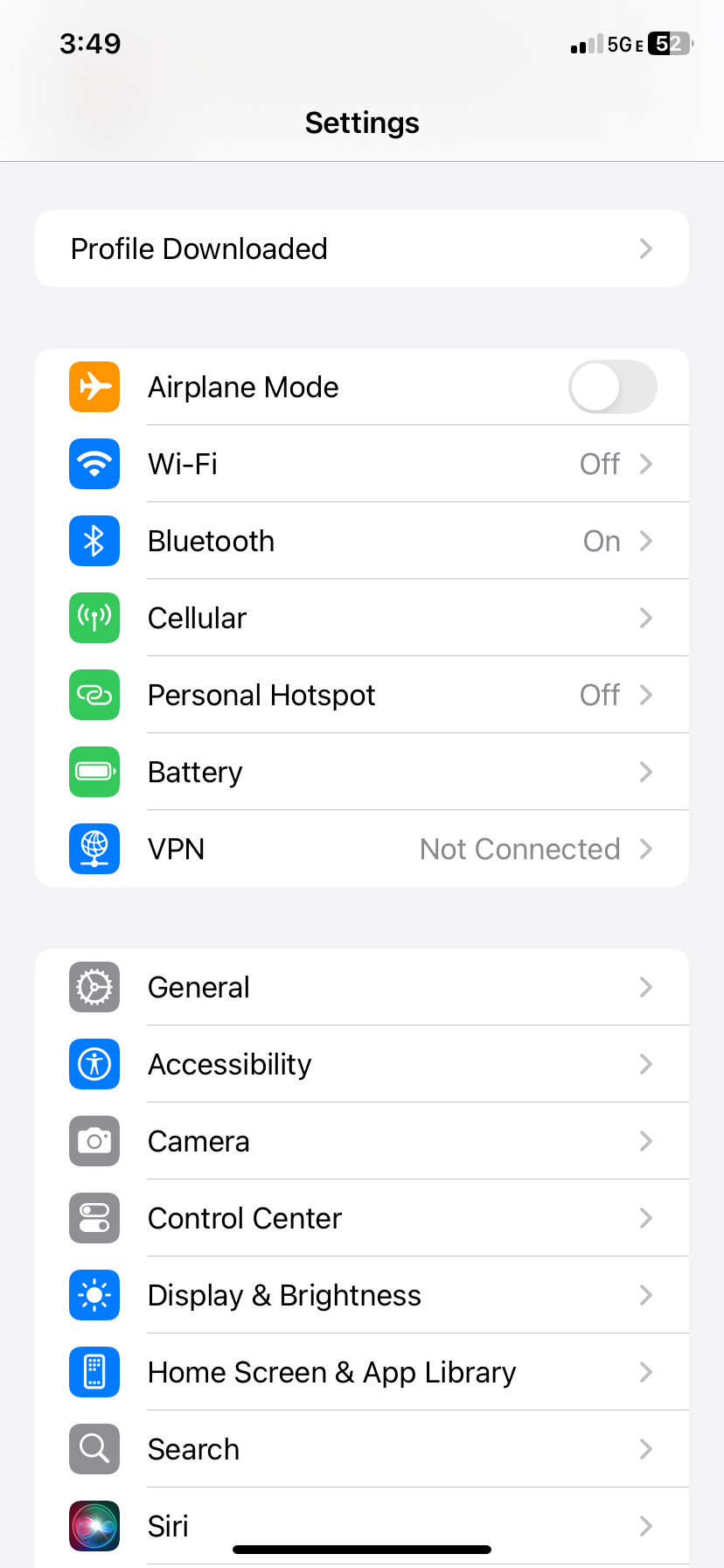
Tap the Profile Downloaded menu item at the top of your Settings app and then...
iPhone Settings screen showing Profile Downloaded
Step 3
Tap Install (top-right) and then... → Tap Install again and then... → Tap Install again and then...
iPhone certificate installation settings
Instructions
Step 1
Open the Settings screen on your Android device then...
Settings
Step 2
Tap Security then...›
Security
Step 3
Tap Encryption & credentials then...›
Encryption & credentials
Step 4
Tap Install a certificate then...›
Install a certificate
Step 5
Tap CA Certificate then...›
CA Certificate
Step 6
Select the downloaded .crt file then tap Install
Downloaded certificate

iOS requires one extra step to fully trust CA certificates.

Instructions
Step 1
Open the Settings app on your mobile device then...
iPhone Home Screen showing the Settings app icon
Step 2
Tap General then...›
General
Step 3
Tap About then...›
About
Step 4
Tap the Certificate Trust Settings menu item›
Certificate Trust Settings
Step 5
Turn on the Bot Grabber Proxy CA toggle, then tap Continue.
Certificate Trust Settings

Android automatically trusts CA certificates installed through Encryption & credentials → Install a certificate → CA Certificate. If you did that in the previous step, you're already done — tap Next.

Some Samsung or Xiaomi devices call it Biometrics and Security → Other Security Settings → Install from device storage.

Set your Wi-Fi proxy

Point your device's Wi-Fi proxy to these values. This routes DeliverThat traffic through our proxy server. Use your Bot Grabber email as the proxy Username and your Bot Grabber password as the proxy Password.

Server loading… Port loading… Username loading… Password Your Bot Grabber password
Instructions
Step 1
Open the Settings app on your mobile device then...
iPhone Home Screen showing the Settings app icon
Step 2
Tap Wi-Fi then...
iPhone Settings screen showing the Wi-Fi option
Step 3
Tap the ⓘ next to your Wi-Fi network then...›
iPhone Wi-Fi settings screen showing the connected network
Step 4
Tap Configure Proxy then...
iPhone connected Wi-Fi network details screen with Configure Proxy highlighted
Step 5
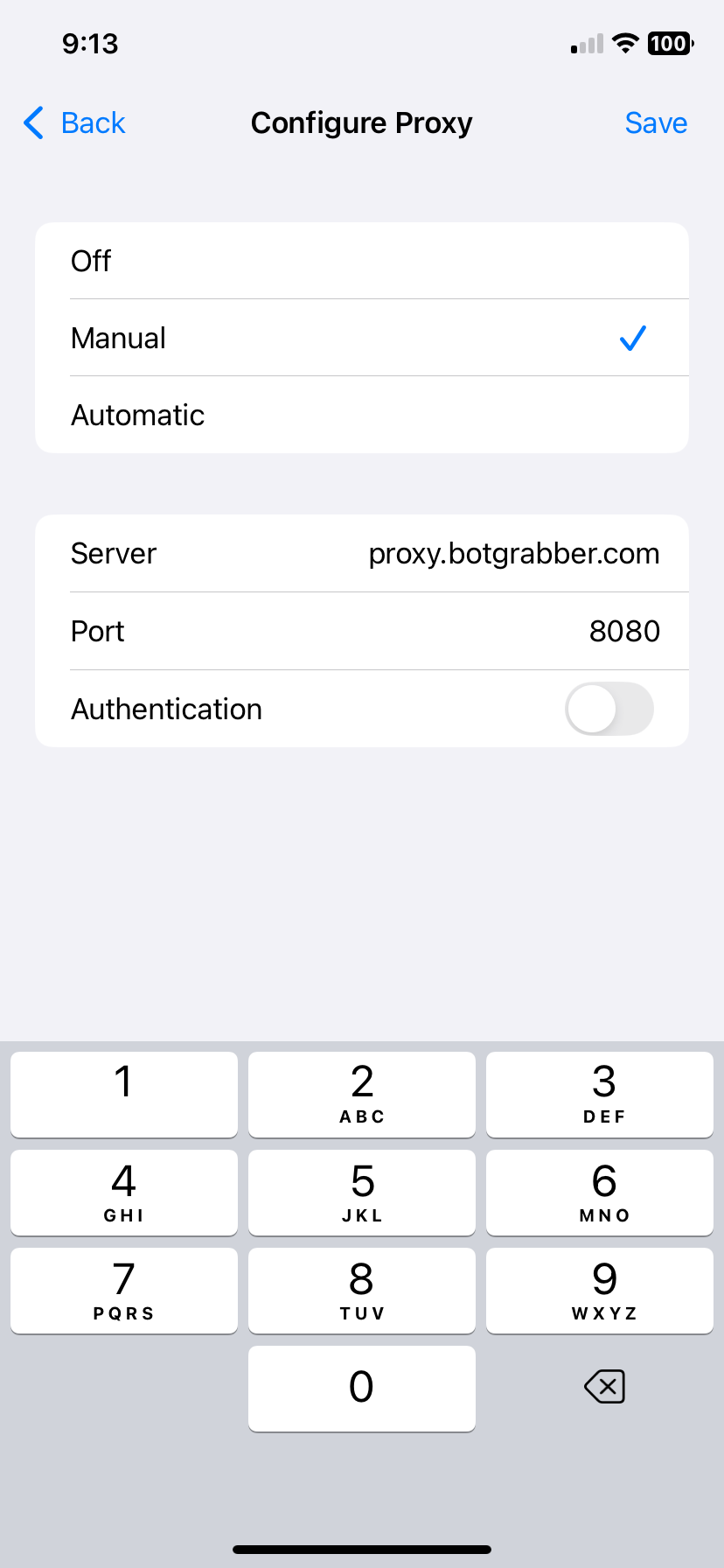
Select Manual then...
iPhone Configure Proxy screen with manual proxy settings
Enter Server as … then...
Enter Port as … then...
Turn Authentication ON then...
Enter your Bot Grabber email as the Username then...
Enter your Bot Grabber password as the Password then...
Tap Save (top-right) when finished.
Instructions
Step 1
Open the Settings screen on your Android device then...
Settings
Step 2
Tap Network & internet (Mobile, Wi-Fi, hotspot) then...
Network & internet
Step 3
Tap your connected Wi-Fi network then...
Internet
Step 4
Tap your connected network to modify its network details then...
Connected Wi-Fi network
Step 5
Tap the edit/modify your connected network details icon/text then...
Network details with the edit icon circled
Step 6
Expand Advanced options then...
Advanced options
Step 7
Tap Proxy and select Manual then...
Step 8
Enter the proxy hostname as … then...
Step 9
Enter the proxy port as … then...
Step 10
Turn Authentication on then...
Step 11
Enter your Bot Grabber email as the Username then...
Step 12
Enter your Bot Grabber password as the Password then...
Step 13
Tap Save when finished.
Open your DeliverThat driver app and login now to complete your bot setup.

Bot Grabber will detect it automatically.