🦾 Bot 🤖 Grabber🦿
DeliverThat Bot

DeliverThat driver mobile app automation

Route your mobile device through our automation proxy so you can grab catering orders automatically.

🔐 Install Cert → 📶 Set Proxy → 📱 Open DeliverThat → ✅ Run Bot

Login/Register

1 · Certificate
2 · Trust
3 · Proxy
4 · Connect

Checking your account…

On your mobile device, tap Download Certificate below to begin installation.

⬇ Download Certificate

Filename: BotGrabber-CA.crt

Instructions
Step 1
Open the Settings app on your iOS mobile device and then...
iPhone Home Screen showing the Settings app icon
Step 2
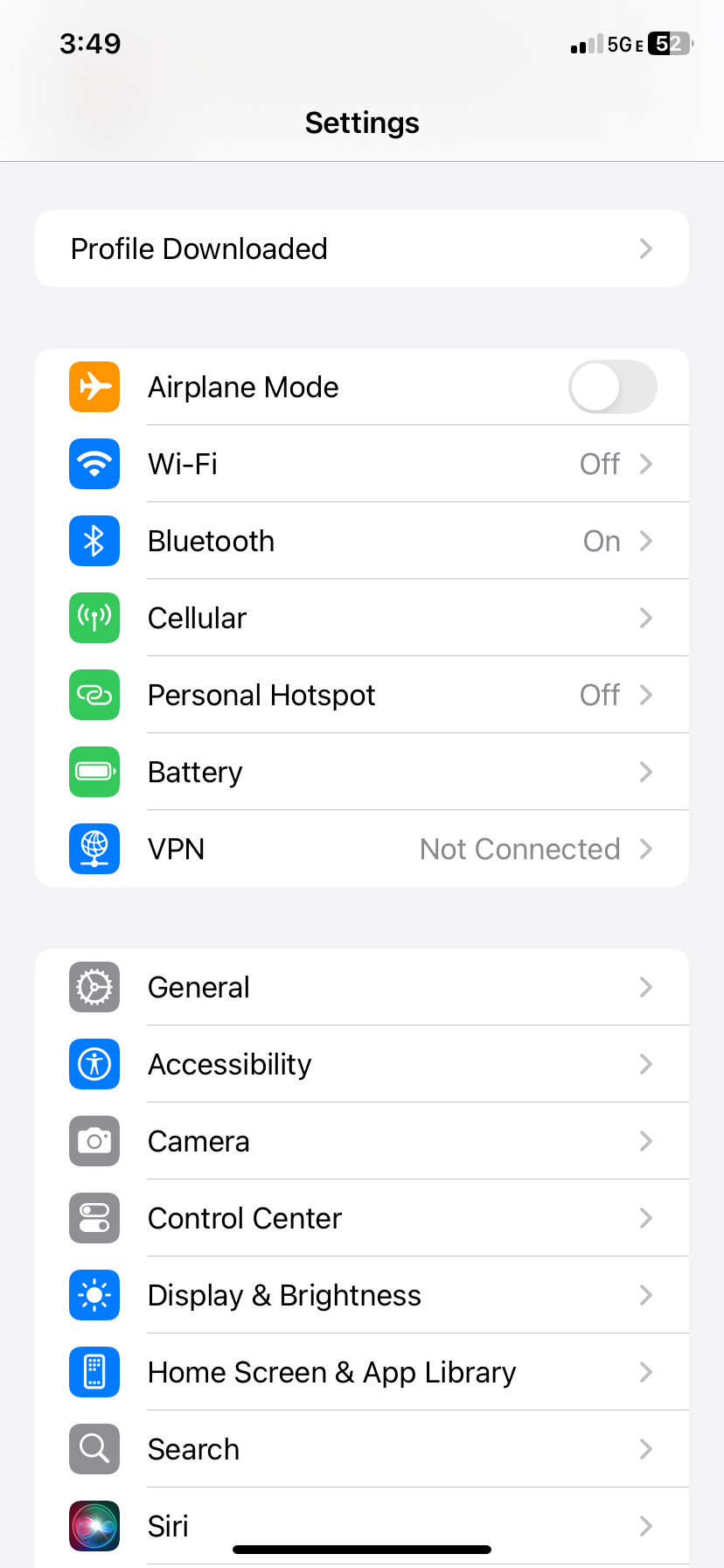
Tap the Profile Downloaded menu item at the top of your Settings app and then...
iPhone Settings screen showing Profile Downloaded
Step 3
Tap Install (top-right) and then... → Tap Install again and then... → Tap Install again and then...
iPhone certificate installation settings
Instructions
Step 1
If your browser asks to keep the download, confirm it.
Step 2
Open the downloaded APK from your browser's downloads.
Step 3
If Android asks for permission, tap Settings.
Step 4
Turn on Allow from this source, then return to the installer.
Step 5
Tap Install, then Open.
Step 6
If Android asks, allow Bot Grabber notifications.
Step 7
Tap Login in Bot Grabber.
Step 8
Sign in to your Bot Grabber account.
Step 9
Bot Grabber saves the certificate in Downloads/Bot Grabber. Tap Open Settings when prompted.
Step 10
Tap More security & privacy then...›
More security & privacy
Step 11
Tap Encryption & credentials then...›
Encryption & credentials
Step 12
Tap Install a certificate then...›
Install a certificate
Step 13
Tap CA Certificate then...›
CA Certificate
Step 14
Review Android's warning. To install the Bot Grabber certificate, tap Install anyway.
Android certificate installation warning
Step 15
Open the Bot Grabber folder in Downloads.
Step 16
Select BotGrabber-CA.crt. Confirm installation when Android asks.
Downloaded certificate

iOS requires one extra step to fully trust CA certificates.

Instructions
Step 1
Open the Settings app on your mobile device then...
iPhone Home Screen showing the Settings app icon
Step 2
Tap General then...›
General
Step 3
Tap About then...›
About
Step 4
Tap the Certificate Trust Settings menu item›
Certificate Trust Settings
Step 5
Turn on the Bot Grabber Proxy CA toggle, then tap Continue.
Certificate Trust Settings

Return to Bot Grabber. The app checks that the correct certificate is installed before continuing.

If setup appears again, finish installing the certificate in Android Settings, then return to Bot Grabber.

Set your Wi-Fi proxy

Point your device's Wi-Fi proxy to these values. This routes DeliverThat traffic through our proxy server. Use your Bot Grabber email as the proxy Username and your Bot Grabber password as the proxy Password.

Server loading… Port loading… Username loading… Password Your Bot Grabber password
Instructions
Step 1
Open the Settings app on your mobile device then...
iPhone Home Screen showing the Settings app icon
Step 2
Tap Wi-Fi then...
iPhone Settings screen showing the Wi-Fi option
Step 3
Tap the ⓘ next to your Wi-Fi network then...›
iPhone Wi-Fi settings screen showing the connected network
Step 4
Tap Configure Proxy then...
iPhone connected Wi-Fi network details screen with Configure Proxy highlighted
Step 5
Select Manual then...
iPhone Configure Proxy screen with manual proxy settings
Enter Server as … then...
Enter Port as … then...
Turn Authentication ON then...
Enter your Bot Grabber email as the Username then...
Enter your Bot Grabber password as the Password then...
Tap Save (top-right) when finished.
Instructions
Step 1
Allow Bot Grabber's VPN connection when Android asks.
Step 2
Keep Bot Grabber connected, then open DeliverThat and sign in.
Open your DeliverThat driver app and login now to complete your bot setup.

Bot Grabber will detect it automatically.